Nutanix Pause 1-Click Upgrades

Introduction
A while ago, I had to perform some upgrades for one of our customers, which has a quite big environment (over 18 nodes in a cluster).
One of these upgrades was the ESXi part, and as you probably already know, Nutanix has a very convenient and efficient functionality builtin into Prism Element to orchestrate these upgrades.
This functionality ensures all proper steps are taken before a host gets its patches. Everything is being taken care of, evacuating UVMs or powering them off if they're pinned, putting the CVM in maintenance mode, and gracefully shutting it down, and lastly putting the host in maintenance mode before applying the new ESXi binaries. All automated, awesome, right?!
The issue
The only small downside is that this happens in a consecutive rolling upgrade manner. This basically means, once you kick off these upgrades, you'll have to go through the whole process. No such thing as pausing and resuming later on. Or perhaps there is a way...? 🤔
Since this upgrade would take quite some time, and therefore potentially breach the maintenance window, this led me to further investigate this via a support case.
Turns out Nutanix support confirmed there is a relatively simple method to achieve this, and in fact, it's quite safe to do so.
I'll share the steps, for those who would be interested in it.
Procedure
Pausing 1-click upgrades
I'll cite the procedure, as provided by Nutanix support.
- Start the ESXi upgrade via the 1-click mechanism (NOT LCM ⚠️). Make sure to do this correctly, since this method only works via 1-click.
- Once the 1-click upgrade pre-checks have been completed, allow the 1st set of ESXi hosts to complete their upgrades.
- Whenever you notice you're close to nearing the end of the maintenance window, SSH to any CVM and use the following steps to pause the upgrade
Visually validate whether the host has exited maintenance mode and the CVM is booted via vCenter. Next, run the following command on a CVM and ensure none of the CVMs shows as “down” or “maintenance” anymore.
cluster status | grep -v UPIf the last host that has been upgraded its CVM shows as “up” but some services haven't started yet, that's fine; these will start shortly after the CVM has been taken out of maintenance mode. You can proceed with the next actions.
Next, run the following two commands sequentially.
cluster --host_upgrade disable_auto_install
cluster restart_genesis
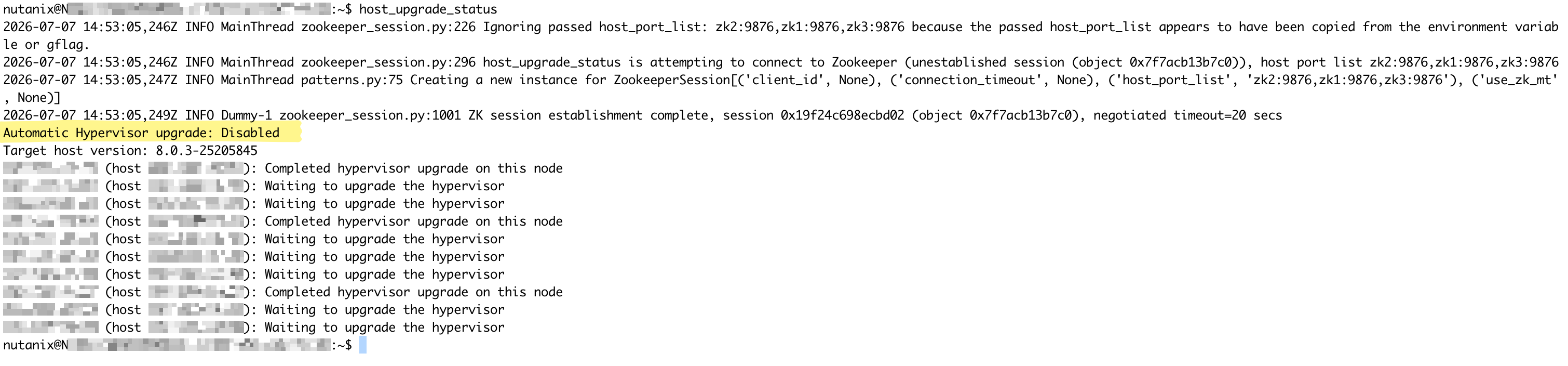
- Once these two commands have been executed, you can verify that the upgrades have indeed been paused, leveraging the following command.
host_upgrade_statusYou'll notice the state of “Automatic Hypervisor upgrade” will show as “disabled”; this is expected and means the commands did work.
Check that all CVMs show as up, the metadata ring is stable, and resiliency shows as “OK” in Prism Element.
You can now safely leave the environment as-is until you want to resume the upgrades, the day after, for example.
Resuming 1-click upgrades
When you would like to resume the upgrades, the process is as simple as entering the following two commands:
cluster --host_upgrade enable_auto_install
cluster restart_genesis
Next, verify that the 1-click upgrades are indeed resuming, using the following command.
host_upgrade_statusNotice the state of “Automatic Hypervisor upgrade” will now show as “enabled” instead and that the process will shortly resume after executing these commands.

And there you have it! Pausing and resuming upgrades at your pace 🎉
Thanks for stopping by! 🙌🏻